

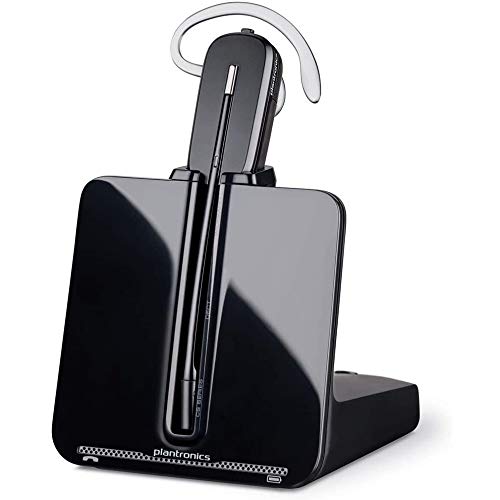


Plantronics EHS Cable – Electronic Hook Switch for Seamless Desk Phone Integration
Our electronic hook switch cable bridges your compatible Plantronics wireless headset to your desk phone system, giving you remote call answering and ending without touching the phone itself. Designed for professionals who spend their day on calls, this cable eliminates the need to manually lift the handset or press buttons at your desk base—simply tap your headset’s call control to pick up or hang up from anywhere within wireless range.
We engineered this EHS solution to work seamlessly with major desk phone platforms including Cisco, Avaya, Polycom, and others, so you can maintain full headset functionality even on complex office systems. Installation takes minutes: plug one end into your headset base, the other into your phone’s auxiliary port, and you’re ready to answer calls from the printer room, the break area, or across the cubicle wall. The cable delivers reliable signal transmission and supports call-control features like mute, volume adjustment, and call waiting management directly from your headset.
Electronic hook switch specs and remote control capabilities
How electronic hook switch works with your desk phone
An EHS cable sends electronic signals directly to your phone’s control circuitry, mimicking the action of lifting the handset or pressing the speakerphone button. Unlike mechanical lifters that physically move the handset cradle, our Plantronics EHS cable communicates digitally with your phone system—resulting in instant call pickup with zero moving parts to wear out.
You’ll connect the cable’s modular plug to the auxiliary or headset port on your desk phone (most enterprise phones label this port “AUX” or “Headset”), then run the opposite end to the AUX-in jack on your Plantronics wireless base. Once paired, every call-control button on your headset becomes a direct command to the desk phone: press the call button to answer, press again to hang up, tap mute to silence your microphone. Volume up/down on your headset adjusts the desk phone’s audio level in real time. The cable handles all signaling, so your phone recognizes headset commands exactly as if you’d pressed the phone’s own buttons.
Compatibility and model-specific requirements
Our Plantronics EHS cable is built to support the CS500 series (CS510, CS520, CS530, CS540) and the Savi W700 and W400 series wireless headsets. On the phone side, we’ve validated compatibility with Cisco Unified IP Phone 7900 and 8800 models, Avaya one-X and 9600/1600 series, Polycom SoundPoint IP and VVX lines, and Nortel/Aastra systems equipped with an EHS port.
Check your phone’s firmware
Some desk phone models require a minimum firmware version to activate EHS functionality—consult your phone’s settings menu or IT administrator to confirm EHS support is enabled. If your phone lacks a dedicated EHS port, consider pairing the headset with a headset lifter that physically moves the handset instead. We recommend the EHS route whenever your phone offers the port, since digital signaling is faster and more reliable than mechanical actuation.
Installation and configuration steps
Start by powering off both your headset base and your desk phone. Locate the auxiliary or headset port on the phone—typically found on the back or bottom edge, marked “AUX,” “Headset,” or a handset icon. Insert the cable’s modular connector into that port until it clicks. Then connect the opposite end to the AUX jack on your Plantronics base (labeled “AUX IN” or “EHS” depending on model).
Power on your desk phone first, allowing it to boot completely before switching on the headset base. Most systems auto-detect the EHS connection and display a headset icon on the phone’s screen. If call control doesn’t work immediately, navigate to your phone’s settings menu and enable “Electronic Hook Switch” or “Headset Mode”—exact wording varies by manufacturer. Once enabled, test by pressing the call button on your headset while a call rings; the desk phone should answer without you touching it. Press the call button again to hang up. If you encounter issues, verify the cable is seated firmly at both ends and confirm your phone firmware supports EHS.
Essential headset accessories for remote answer and desk phone control


Rated 4.8 by verified buyers
Common questions about Plantronics EHS cable compatibility and setup
The cable is compatible with desk phones that have a dedicated EHS or auxiliary port and support electronic hook switch signaling. We’ve validated it with Cisco 7900/8800 series, Avaya one-X and 9600 series, Polycom SoundPoint IP and VVX models, and select Nortel/Aastra phones.
If your phone lacks an EHS port or the manufacturer disabled EHS in firmware, the cable will not function. In that case, you’ll need a mechanical handset lifter instead. Check your phone’s user manual or contact your IT department to confirm EHS support before purchasing.
Yes, the cable is designed specifically for Plantronics CS500 series (CS510, CS520, CS530, CS540) and Savi W700 and W400 series wireless headsets. You’ll connect the cable between your headset’s charging base (the AUX-in port) and your desk phone’s EHS port.
Other Plantronics headset models that lack a base station with an AUX-in jack will not work with this cable. If you’re unsure whether your headset model is compatible, verify that your base has a port labeled “AUX IN” or “EHS” on the back or side panel.
An EHS cable sends electronic signals directly to your phone’s circuitry to answer and end calls, while a handset lifter is a mechanical device that physically raises and lowers your phone’s handset. EHS cables are silent, require no external power, and respond instantly—typically under 100 milliseconds.
Handset lifters use a small motor to move an arm, which produces audible clicks, requires an AC adapter, and can slip out of alignment if the phone is moved. We recommend EHS cables whenever your phone supports the feature, since they’re faster, quieter, and eliminate moving parts that can wear out over time.
The cable measures six feet from end to end, giving you flexibility to position your headset base and desk phone several feet apart if needed. One end plugs into the AUX or EHS port on your desk phone—usually found on the back or bottom edge, labeled “AUX,” “Headset,” or marked with a handset icon.
The opposite end connects to the AUX-in jack on your Plantronics wireless headset base. Once both ends are seated, power on your phone and base in that order, and the connection should auto-detect. If call control doesn’t activate, check your phone’s settings menu to enable EHS mode.
No software installation is required on your computer, since the cable communicates directly between your headset base and your desk phone. However, some desk phone models require a minimum firmware version to support EHS functionality.
If you plug in the cable and call control doesn’t work, navigate to your phone’s settings menu to confirm EHS mode is enabled. Your IT administrator can verify your phone’s firmware version and enable the feature if it’s disabled by default. Once EHS is active, the cable operates plug-and-play with no further configuration.
Yes, once connected the cable allows your headset’s buttons to send mute, volume up/down, hold, and call answer/end commands directly to your desk phone. You’ll press the mute button on your headset to silence the microphone, adjust volume using the headset’s rocker switch, and manage hold or call waiting via the call button.
The exact feature set depends on your desk phone model—most enterprise phones support full call control via EHS, but older or consumer-grade models may offer limited functionality. Consult your phone’s EHS documentation to confirm which commands are supported.
If your phone lacks a dedicated EHS or auxiliary port, you won’t be able to use this cable for remote call control. In that scenario, we recommend our mechanical handset lifter accessory, which sits on your desk and physically raises the handset when you press the call button on your headset.
The lifter requires an AC power adapter and takes up additional desk space, but it works with virtually any corded desk phone that has a standard handset cradle. Check the back and sides of your phone for any port labeled “AUX,” “Headset,” or “EHS” before deciding which accessory to order.